GeneralUpdate.PacketTool
Introduction
GeneralUpdate.Tools is a desktop application developed using Avalonia that supports Windows / Linux / Mac cross-platform. This tool provides developers with three core functional modules for managing software updates and extensions.
| Repository URL |
|---|
| https://github.com/GeneralLibrary/GeneralUpdate.Tools |
| Feature | Supported | Remarks |
|---|---|---|
| Build patch package | Yes | Compares the previous version with the current version to identify updated, newly added, or deleted files. |
| Build OSS version configuration | Yes | Easily generates OSS version configuration files. |
| Extension Manager | Yes | Package and manage application extensions. |
Feature Descriptions
1. Build Patch Package
Function Introduction
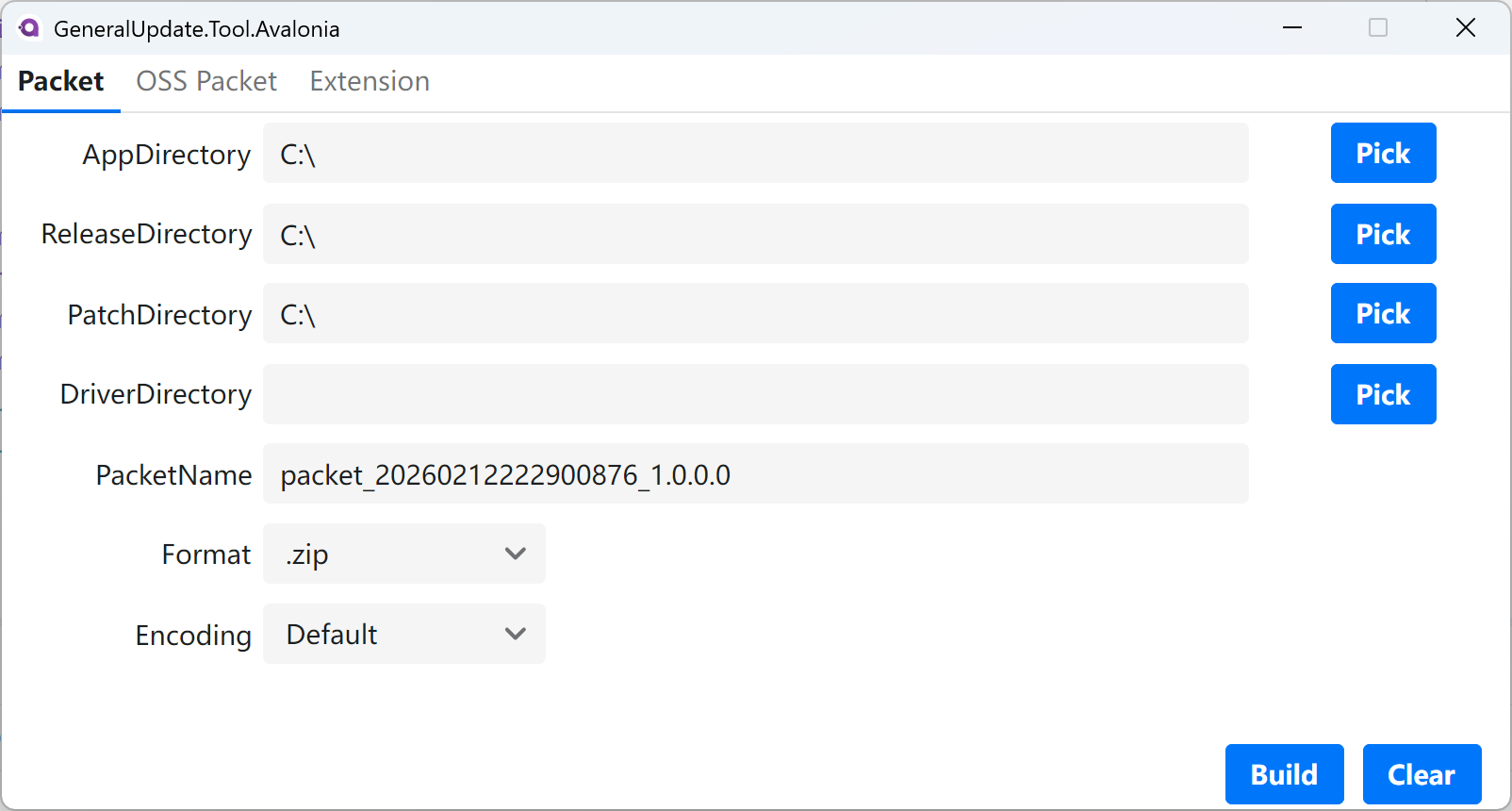
The Patch Package Builder is used to create differential update packages. By comparing the old version with the new version, it only packages the changed files, significantly reducing the update package size and download time.
Parameter Description
| Name | Remarks |
|---|---|
| Source path | Path to the folder of the previous version. |
| Target path | Path to the folder of the current version. |
| Patch path | Path where the final update patch package will be generated. |
| Build | Recursively compares all project files (DLL, exe, etc.) in the Source path and Target path folders. Analyzes the list of files to be updated through binary difference check and incremental check, then packages the update files according to the folder structure. |
| Clear | Clears the currently entered content. |
2. Build OSS Version Configuration
Function Introduction
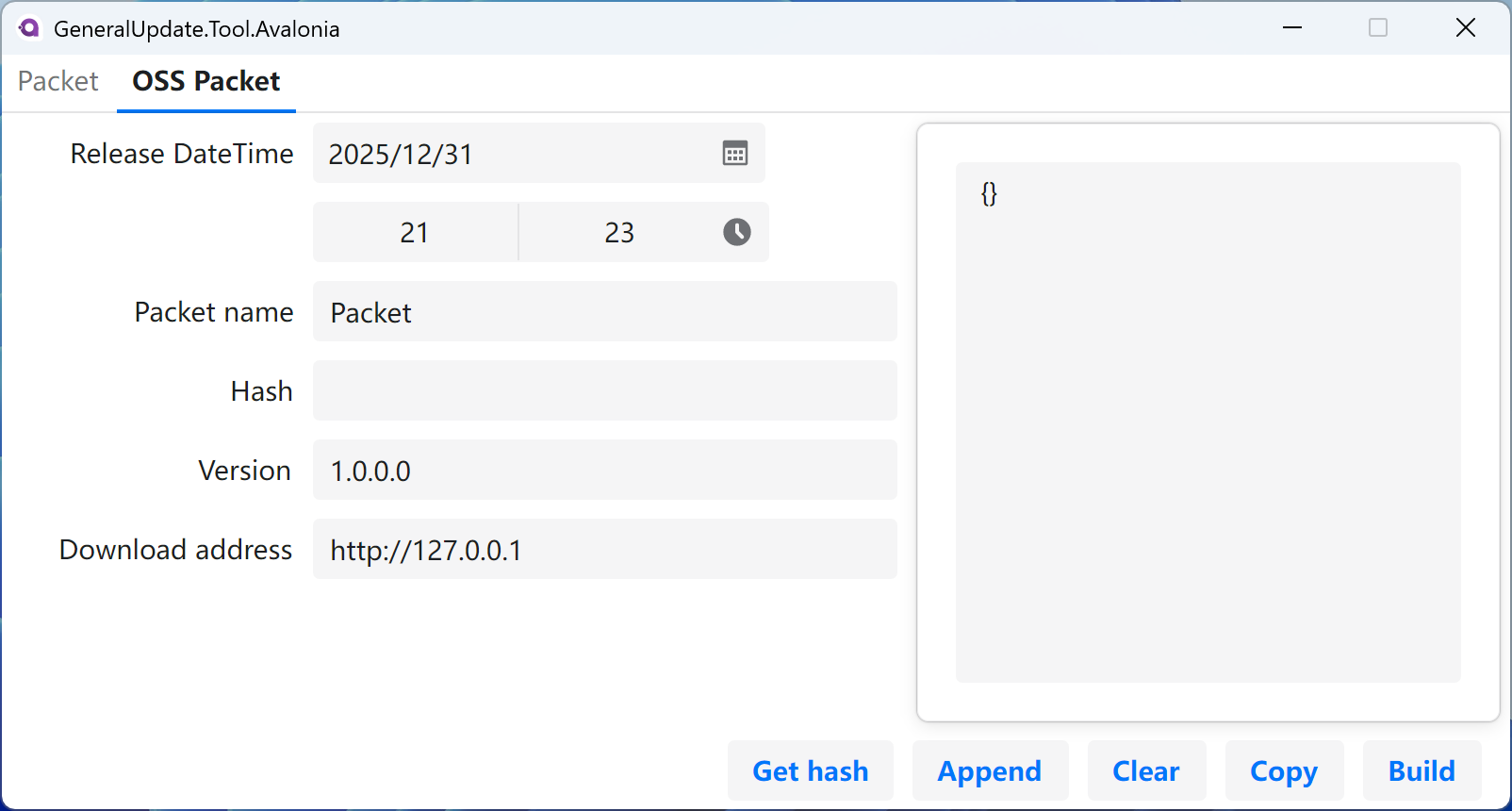
The OSS Version Configuration Builder is used to generate version.json configuration files, which contain metadata information about the update package, informing the client application how to obtain and verify the update package.
Parameter Description
| Name | Remarks |
|---|---|
| Release date time | Release time of the update package. |
| PacketName | Name of the update package. |
| Hash | Hash value of the update package (for integrity verification). |
| Version | Version number of the update package. |
| Download address | Download URL of the update package. |
| Get hash | Function to retrieve the hash value of the update package. |
| Append | Appends new update information to the existing version details. |
| Clear | Clears all filled-in content. |
| Copy | Copies the generated content to the clipboard. |
| Build | Generates the OSS version configuration file (.json) to the local disk. |
3. Extension Manager
Function Introduction
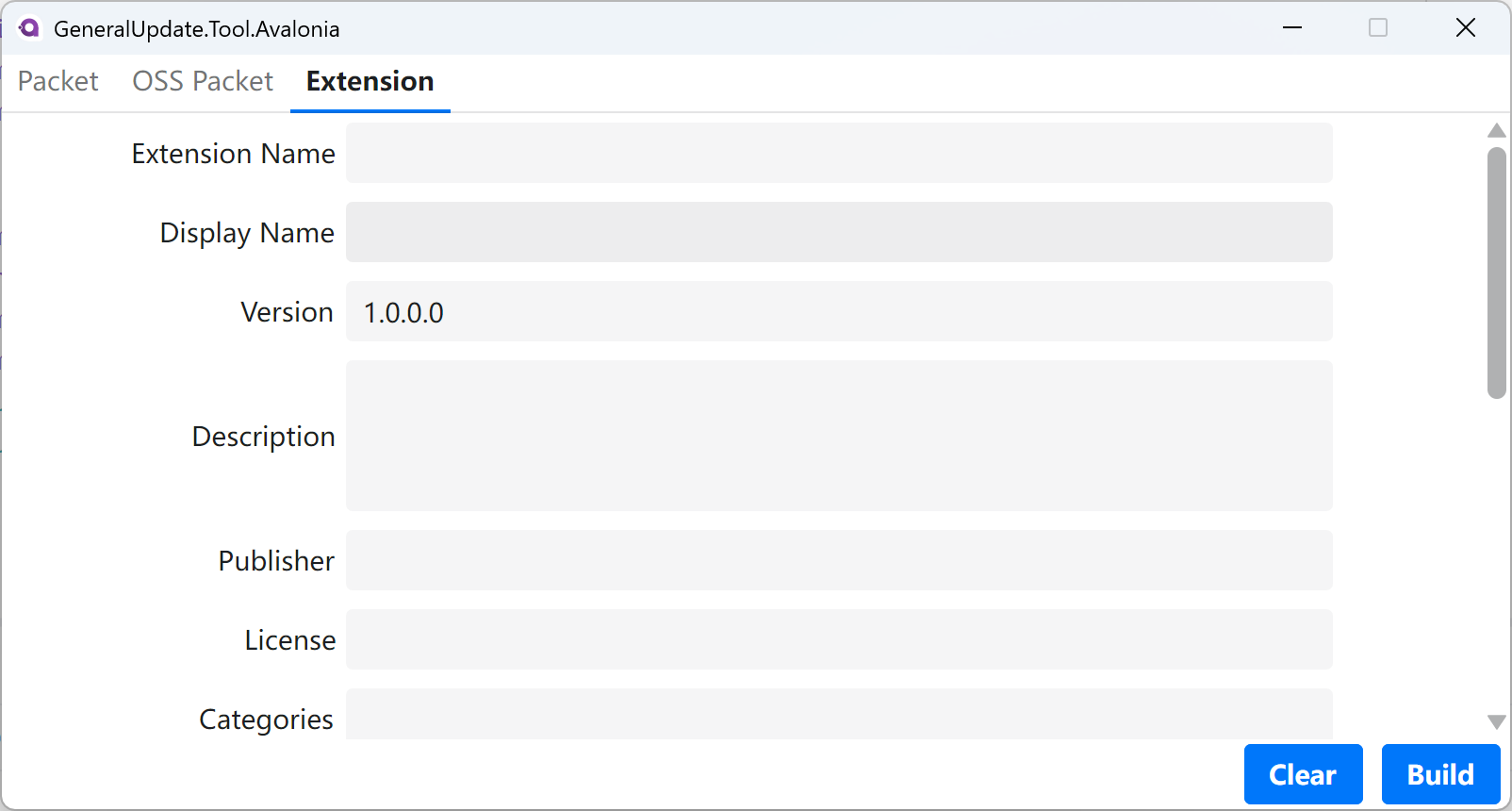
The Extension Manager (ExtensionView) is one of the core features of GeneralUpdate.Tools, used to package application extensions into distributable standard formats. This tool automatically creates extension packages containing all necessary metadata, supports platform-specific configurations, dependency management, and custom properties, making it ideal for building plugin systems and extension marketplaces.
Core Features
- Complete Metadata Management: Supports standard fields such as extension name, version, description, publisher, license, etc.
- Platform Support: Can specify target platforms (Windows / Linux / MacOS)
- Version Compatibility: Define minimum and maximum host version requirements
- Dependency Management: Declare dependencies on other extensions
- Automatic Packaging: Automatically compress extension directory and generate manifest.json
- Custom Properties: Supports adding additional key-value pair metadata
- Category Tags: Organize and discover extensions through category tags
Extension Manager Usage Guide
Basic Information Fields
Extension Name
Description: Unique identifier for the extension. It is recommended to use lowercase letters and hyphens without spaces.
Example: my-awesome-plugin, data-exporter
Display Name
Description: User-friendly display name that will be shown in extension lists and detail pages.
Example: My Awesome Plugin, Data Exporter Tool
Version
Description: Extension version number. It is recommended to follow Semantic Versioning (SemVer) specification in the format Major.Minor.Patch.Build.
Example: 1.0.0.0, 2.1.3.0
Description
Description: Detailed description of the extension's functionality, telling users the purpose and features of the extension. Supports multi-line text.
Example:
This extension adds powerful data export capabilities to your application,
supporting multiple formats including CSV, Excel, and JSON.
Publisher
Description: Publisher name or organization identifier of the extension.
Example: YourCompany, john-doe, awesome-dev-team
License
Description: Open source license identifier used by the extension.
Example: MIT, Apache-2.0, GPL-3.0, BSD-3-Clause
Categories
Description: Category tags to which the extension belongs. Multiple categories are separated by commas. Used for organizing and searching extensions.
Example: Tools, Productivity, Data, Export, Utilities
Common Categories:
Tools- ToolsProductivity- Productivity enhancementData- Data processingUI- User interfaceSecurity- SecurityDevelopment- Development
Path Configuration
Extension Directory
Description: Source directory path containing all files of the extension. All files in this directory will be packaged into the final extension package.
Operation: Click the "Pick" button to select a folder
Directory Structure Example:
MyExtension/
  ├── bin/
  │   ├── MyExtension.dll
  │   └── dependencies/
  ├── resources/
  │   ├── icons/
  │   └── templates/
  └── README.md
Export Path
Description: Save directory for the final generated extension package (.zip file).
Operation: Click the "Pick" button to select save location
Output Format: Generated file name format: {ExtensionName}_{Version}.zip
Example: my-awesome-plugin_1.0.0.0.zip
Dependencies
Dependencies
Description: List of IDs of other extensions that this extension depends on, separated by commas. The extension system will automatically handle dependency resolution and installation order.
Format: Comma-separated list of extension GUIDs
Example:
550e8400-e29b-41d4-a716-446655440001,
550e8400-e29b-41d4-a716-446655440002
Use Cases:
- Extension requires functionality provided by other extensions
- Sharing common libraries or resources
- Ensuring correct loading order
Version Compatibility
Min Host Version
Description: Minimum host application version supported by the extension. If the host version is lower than this value, the extension will be marked as incompatible.
Format: Semantic version number (without build number)
Example: 1.0.0, 2.5.0
Max Host Version
Description: Maximum host application version supported by the extension. If the host version is higher than this value, the extension will be marked as incompatible.
Format: Semantic version number (without build number)
Example: 3.0.0, 2.9.9
Compatibility Check Logic:
MinHostVersion ≤ Host Version ≤ MaxHostVersion
Example Scenario:
- Host Version:
2.0.0 - Min Host Version:
1.5.0 - Max Host Version:
2.5.0 - Result: ✓ Compatible
Platform and Format
Format
Description: File format of the extension package. Currently fixed as .zip format, this is a read-only field.
Value: .zip (Read-only)
Release Date
Description: Release date of the extension. Used for version tracking and displaying release timeline.
Operation: Use the calendar picker to select a date
Platform
Description: Target operating system platform supported by the extension. Selecting the correct platform ensures that the extension is only installed and run on compatible systems.
Available Options:
Windows- Only supports Windows operating systemLinux- Only supports Linux operating systemMacOS- Only supports MacOS operating system
Selection Guide:
- If the extension uses platform-specific APIs or libraries, select the corresponding platform
- Cross-platform extensions can create separate versions for each platform
- Platform selection affects the visibility and installability of extensions on different operating systems
Options
Pre-release
Description: Mark whether this extension version is a pre-release version (such as Alpha, Beta, RC). Pre-release versions are typically used for testing and early access.
Checkbox: Check to indicate pre-release
Use Cases:
- Internal test version
- Public beta version
- Release candidate version
Impact:
- Pre-release versions may be displayed or marked separately in extension marketplaces
- Users can choose whether to receive automatic updates for pre-release versions
Custom Properties
Enable Custom Properties
Description: When enabled, you can add additional key-value pair metadata for the extension, used to store extension-specific configurations or information.
Checkbox: Check to show custom properties input area
Add Custom Properties
Operation Steps:
-
Enter Property Key: Enter the property name in the "Property" field
- Recommended to use camelCase or hyphen-case
- Examples:
maxConnections,default-theme,apiEndpoint
-
Enter Property Value: Enter the corresponding value in the "Value" field
- Supports strings, numbers, and various other values
- Examples:
100,dark,https://api.example.com
-
Click Add: Click the "Add" button to add the property to the list
-
Manage Properties:
- View added properties
- Click "Remove" to delete unwanted properties
Use Cases:
- Store extension-specific configuration options
- Record extension metadata information
- Pass initialization parameters
- Store extension API endpoints or resource paths
Examples:
{
  "maxConcurrentTasks": "5",
  "defaultLanguage": "en-US",
  "apiBaseUrl": "https://api.myextension.com",
  "enableDebugMode": "false"
}
Operation Workflow
Complete Steps to Create an Extension Package
Step 1: Prepare Extension Files
Ensure your extension directory contains all necessary files:
- Assembly files (DLLs, executables)
- Resource files (icons, templates, configuration files)
- Dependency libraries
- Documentation files (README, LICENSE)
Step 2: Open Extension Manager
- Launch GeneralUpdate.Tools
- Click the "Extension" tab at the top
- Enter the Extension Manager interface
Step 3: Fill in Basic Information
Fill in the following fields according to the field descriptions above:
- Extension Name
- Display Name
- Version
- Description
- Publisher
- License
- Categories
Step 4: Configure Paths
-
Select Extension Directory:
- Click the "Pick" button next to "Extension Directory"
- Browse and select the folder containing extension files
-
Select Export Path:
- Click the "Pick" button next to "Export Path"
- Select the directory to save the generated extension package
Step 5: Configure Dependencies and Compatibility (Optional)
-
Add Dependencies (if applicable):
- Enter the GUID of dependent extensions in the "Dependencies" field
- Separate multiple dependencies with commas
-
Set Version Compatibility:
- Fill in "Min Host Version"
- Fill in "Max Host Version"
Step 6: Select Platform and Options
-
Select Target Platform:
- Select Windows, Linux, or MacOS from the "Platform" dropdown list
-
Set Release Date:
- Use the calendar picker to select the release date
-
Mark Pre-release Version (if applicable):
- Check the "Pre-release" checkbox
Step 7: Add Custom Properties (Optional)
- Check "Enable Custom Properties"
- Add key-value pairs in the input boxes
- Click the "Add" button to add each property
- Add multiple custom properties as needed
Step 8: Build Extension Package
-
Review All Information:
- Ensure all required fields are correctly filled in
- Verify that paths are correct
-
Click Build Button:
- Click the "Build" button at the bottom
- Wait for the packaging process to complete
-
Verify Success:
- A success message will be displayed with the file name and location
- The generated extension package is located in the export path
Step 9: Verify Extension Package
After generation, verify that the extension package contains:
- All source files (compressed from extension directory)
manifest.jsonfile (automatically generated)
You can open the .zip file with a decompression tool to inspect:
MyExtension_1.0.0.0.zip
  ├── manifest.json          ← Extension metadata
  ├── bin/
  │   └── MyExtension.dll
  ├── resources/
  └── README.md
Clear Form
If you need to start over or clear all entered content:
- Click the "Clear" button at the bottom
- All fields will be reset to default values
- Custom properties list will be cleared
Output Results
Generated Extension Package Structure
The .zip file generated by the Extension Manager has the following structure:
ExtensionName_Version.zip
  ├── manifest.json                    ← Extension metadata
  ├── [All files and folders from source directory]
  └── ...
manifest.json File Content
The manifest.json file contains all extension metadata. Example structure:
{
  "Name": "my-awesome-plugin",
  "DisplayName": "My Awesome Plugin",
  "Version": "1.0.0.0",
  "Description": "This extension adds powerful features to your application",
  "Publisher": "YourCompany",
  "License": "MIT",
  "Categories": ["Tools", "Productivity"],
  "Dependencies": "550e8400-e29b-41d4-a716-446655440001",
  "MinHostVersion": "1.0.0",
  "MaxHostVersion": "2.0.0",
  "Format": ".zip",
  "ReleaseDate": "2026-02-12T00:00:00",
  "IsPreRelease": false,
  "Platform": {
    "DisplayName": "Windows",
    "Value": 1
  },
  "FileSize": 1048576,
  "CustomProperties": {
    "maxConnections": "100",
    "apiEndpoint": "https://api.example.com"
  }
}
Field Mapping Description
| UI Field | JSON Field | Data Type | Description |
|---|---|---|---|
| Extension Name | Name | string | Extension unique identifier |
| Display Name | DisplayName | string | Display name |
| Version | Version | string | Version number |
| Description | Description | string | Extension description |
| Publisher | Publisher | string | Publisher |
| License | License | string | License |
| Categories | Categories | array | Category list |
| Dependencies | Dependencies | string | Dependencies (comma-separated) |
| Min Host Version | MinHostVersion | string | Minimum host version |
| Max Host Version | MaxHostVersion | string | Maximum host version |
| Format | Format | string | File format |
| Release Date | ReleaseDate | DateTime | Release date |
| Pre-release | IsPreRelease | boolean | Is pre-release |
| Platform | Platform | object | Platform information |
| Custom Properties | CustomProperties | object | Custom properties dictionary |
Best Practices
Naming Conventions
-
Extension Name:
- Use lowercase letters and hyphens
- Avoid spaces and special characters
- Keep it concise and descriptive
- ✓ Correct:
data-exporter,theme-customizer - ✗ Incorrect:
Data Exporter,Theme@Customizer
-
Version Number:
- Follow Semantic Versioning
- Format:
Major.Minor.Patch.Build - Example:
1.0.0.0,2.1.3.5
Directory Organization
Maintain a clear extension directory structure:
MyExtension/
  ├── bin/                    ← Binary files
  │   ├── MyExtension.dll
  │   └── dependencies/
  ├── resources/              ← Resource files
  │   ├── icons/
  │   ├── templates/
  │   └── localization/
  ├── docs/                   ← Documentation
  │   └── README.md
  └── LICENSE                 ← License
Version Compatibility Management
-
Set Reasonable Version Range:
- Don't set too narrow version range
- Consider backward compatibility
- Example: Min
1.0.0, Max2.0.0(Support all 1.x versions)
-
Major Version Updates:
- When major changes occur in the host application, update Min/Max Host Version
- Create new extension versions for new major versions
Dependency Management
-
Minimize Dependencies:
- Only declare necessary dependencies
- Avoid circular dependencies
-
Document Dependencies:
- Explain in the description why these dependencies are needed
- Provide ways to obtain dependencies
Custom Properties Usage
-
Use Cases:
- Store extension-specific configurations
- Record technical requirements of the extension
- Pass initialization parameters
-
Naming Recommendations:
- Use camelCase
- Keep key names concise and clear
- Add prefixes to avoid conflicts
Testing and Validation
-
Pre-packaging Checks:
- ✓ Verify all files are complete
- ✓ Check version number is correct
- ✓ Confirm dependencies are accurate
- ✓ Test extension runs on target platform
-
Post-packaging Verification:
- ✓ Extract and view file structure
- ✓ Check manifest.json content
- ✓ Verify file size is reasonable
- ✓ Install and test in target environment
Release Management
-
Pre-release Versions:
- Use pre-release flag for internal testing
- Collect feedback before releasing stable version
-
Version Updates:
- Maintain version history
- Record changelog in description
- Provide upgrade guidance from old versions
Troubleshooting
Common Issues
Issue 1: Build Failed
Possible Causes:
- Extension directory does not exist or is inaccessible
- No write permission for export path
- Insufficient disk space
- Extension directory is empty
Solutions:
- Verify the extension directory path is correct
- Check write permissions for the export path
- Ensure sufficient disk space
- Confirm the extension directory contains files
Issue 2: Validation Error
Possible Causes:
- Required fields not filled
- Version number format is incorrect
- Invalid path format
Solutions:
- Check all required fields (name, version, directory, export path)
- Use correct version number format (e.g.,
1.0.0.0) - Ensure paths use correct format
Issue 3: Generated Package Cannot Be Extracted
Possible Causes:
- Packaging process was interrupted
- Disk space exhausted during packaging
- Source files are locked or in use
Solutions:
- Regenerate the extension package
- Ensure sufficient disk space
- Close programs using extension files
Issue 4: Cannot Add Custom Properties
Possible Causes:
- Property key or value is empty
- Property key already exists
Solutions:
- Ensure both key and value are filled
- Use unique property key names
- To modify existing properties, delete and re-add
Related Documentation
GeneralUpdate Ecosystem
- GeneralUpdate.Core - Core update component
- GeneralUpdate.Extension - Extension management system
- GeneralUpdate.ClientCore - Client update component
- Quick Start Guide - GeneralUpdate quick start
External Resources
- GeneralUpdate.Tools Source Code - GitHub repository
- GeneralUpdate Main Project - Main framework project
- Issue Feedback - Report issues and suggestions
Applicable To
| Product | Versions |
|---|---|
| .NET | 5, 6, 7, 8, 9, 10 |
| .NET Framework | 4.6.1+ |
| .NET Standard | 2.0 |
| .NET Core | 2.0+ |
| Windows | 10+ |
| Linux | Ubuntu 20.04+, Debian 10+, Fedora 35+ |
| macOS | 10.15+ (Catalina and later) |